Conversions
In AppMetrica, you can configure conversion rules for E-Commerce, Ad revenue, Revenue, deeplink opening, session start, and custom events. To set up access for events which you'll use to configure conversion rules, navigate to the Manage access section.
To view your configured rules, go to Tracking → Conversions.
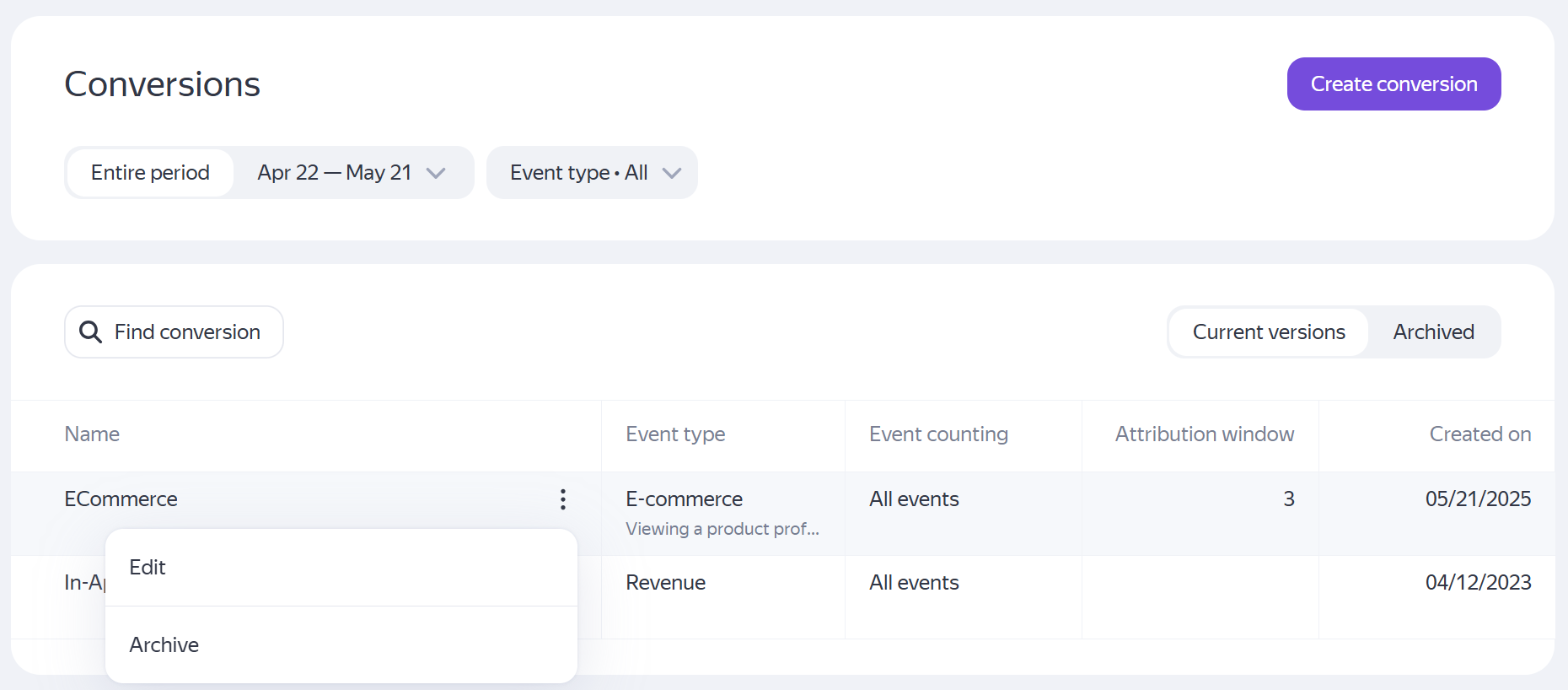
This list shows active rules for the selected period. You can view all rules or only those for a specific type of event.
To find a rule by its name, click Find conversion above the list.
If you no longer need a rule, you can archive it. To do this, click  → Archive next to the rule name. You can switch between the list of active and archived rule versions.
Rule parameters are set when the rule is created. After that, only the rule name and comment can be edited. To do this, click → Edit next to the rule name.
Creating a conversion rule
-
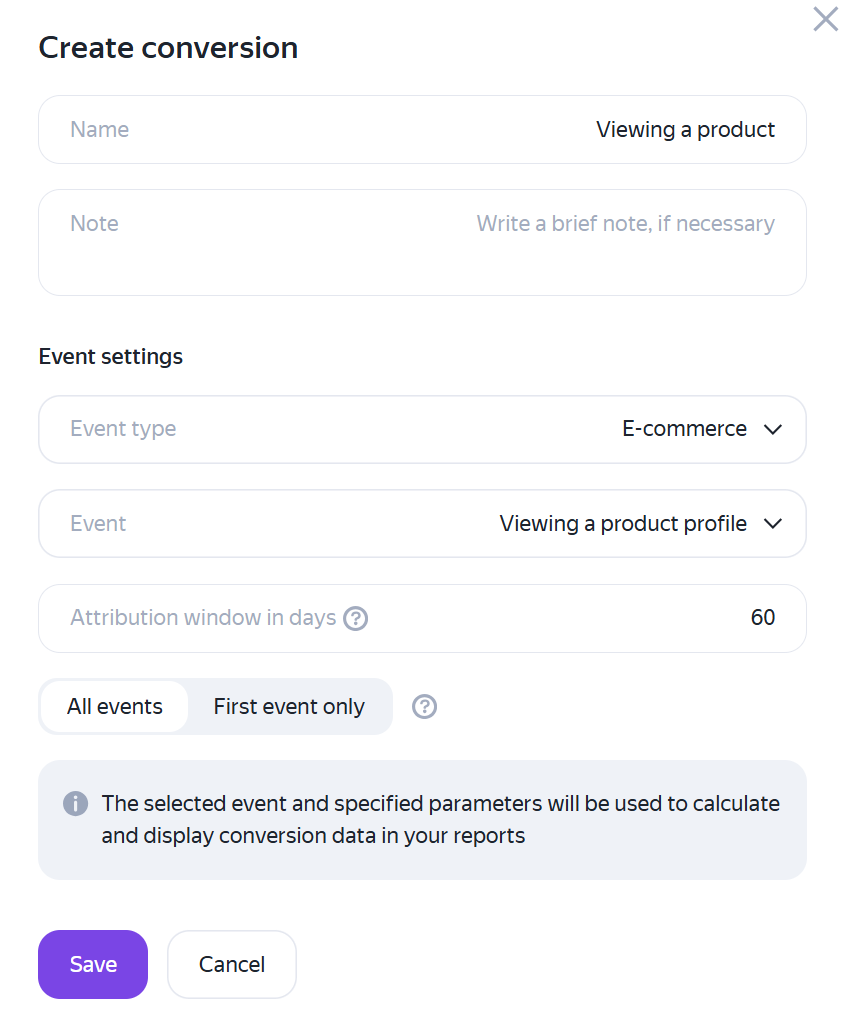
Click Create conversion to open the rule creation window.
-
Enter a name for your rule. If needed, provide a brief note.
-
Select the event type, then choose the specific event for which you want to count conversions. You don't need to specify an event for the Ad Revenue, Deeplink, and Session Start types.
-
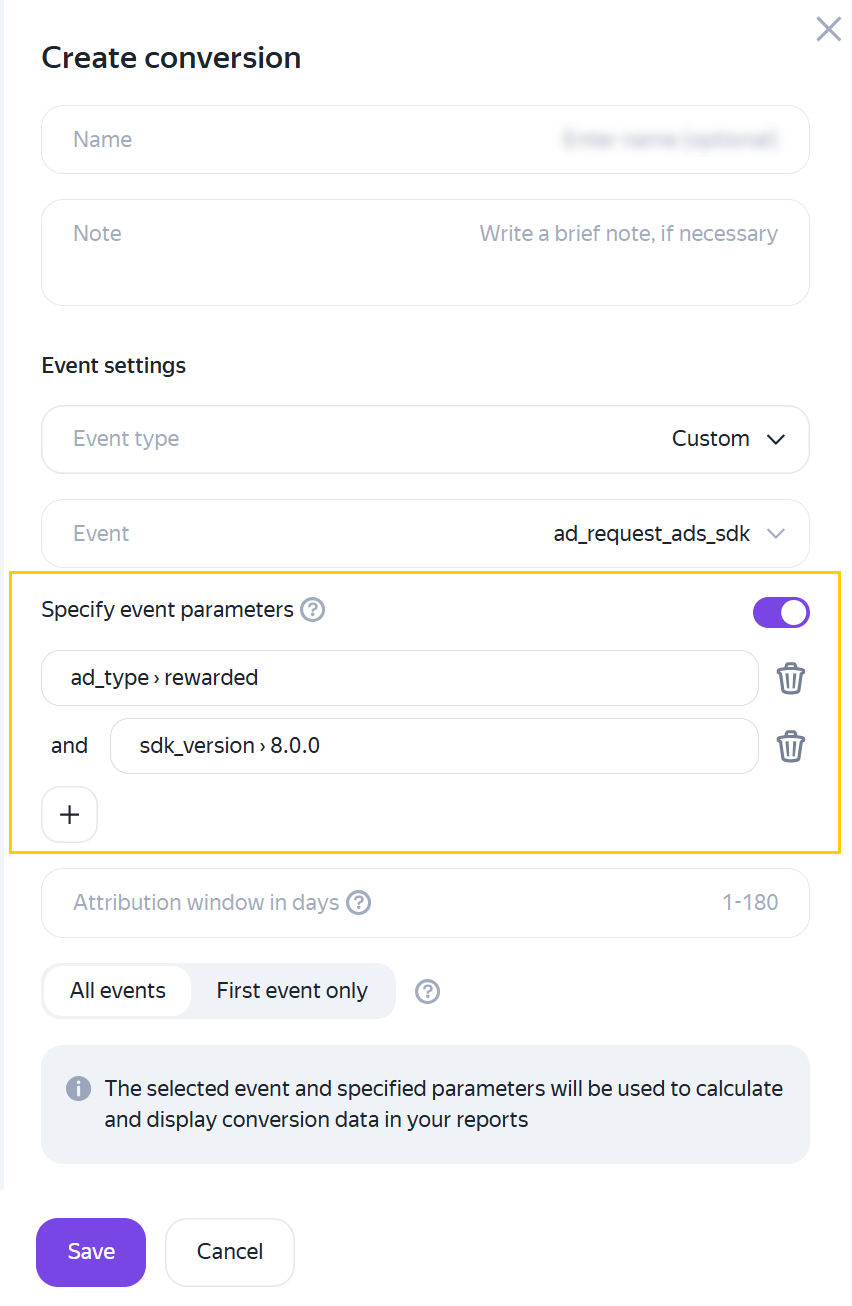
For an event with the Custom type, you can specify event parameters. That way, you'll be able to only take into account the events that match the set rule based on parameters. To do this, enable the Specify event parameters option. For more information, see Creating conversions based on event parameters.
-
Specify an attribution window, which is the number of days that can pass between an installation or re-engagement and a conversion. Acceptable values are from 1 to 180 days.
-
Select an attribution method:
-
All events: Count all target events. Each conversion is attributed separately — to an advertising partner (if the event occurs within the attribution window) or to organic traffic (in other cases).
-
First event only: Count only the first target event on the device, regardless of whether the user clicked an ad or came from organic search results. Subsequent events are ignored.
-
-
Click Save.
Conversion creation window
Creating conversions based on event parameters
With conversions based on event parameters, you can set more precise conditions for sending postbacks.
Examples:
-
For commercial apps: you can send a postback to a partner or ad network only for successful in‑app purchases. To do this, use the
purchaseevent with thestatus = 'success'condition. -
For gaming apps: you can set up retargeting for users who completed level 5 (as an indicator of deep engagement). To do this, send the
level_achievedevent with thelevel_name = 'Level 5'parameter.
In AppMetrica, you can send postbacks with parameters only for custom events. Up to 5 levels of event parameter nesting are supported.
To configure event parameters when creating a conversion:
-
Enable the Specify event parameters option — fields for configuring event parameters will appear.
-
Specify all conditions under which the conversion should be counted:
-
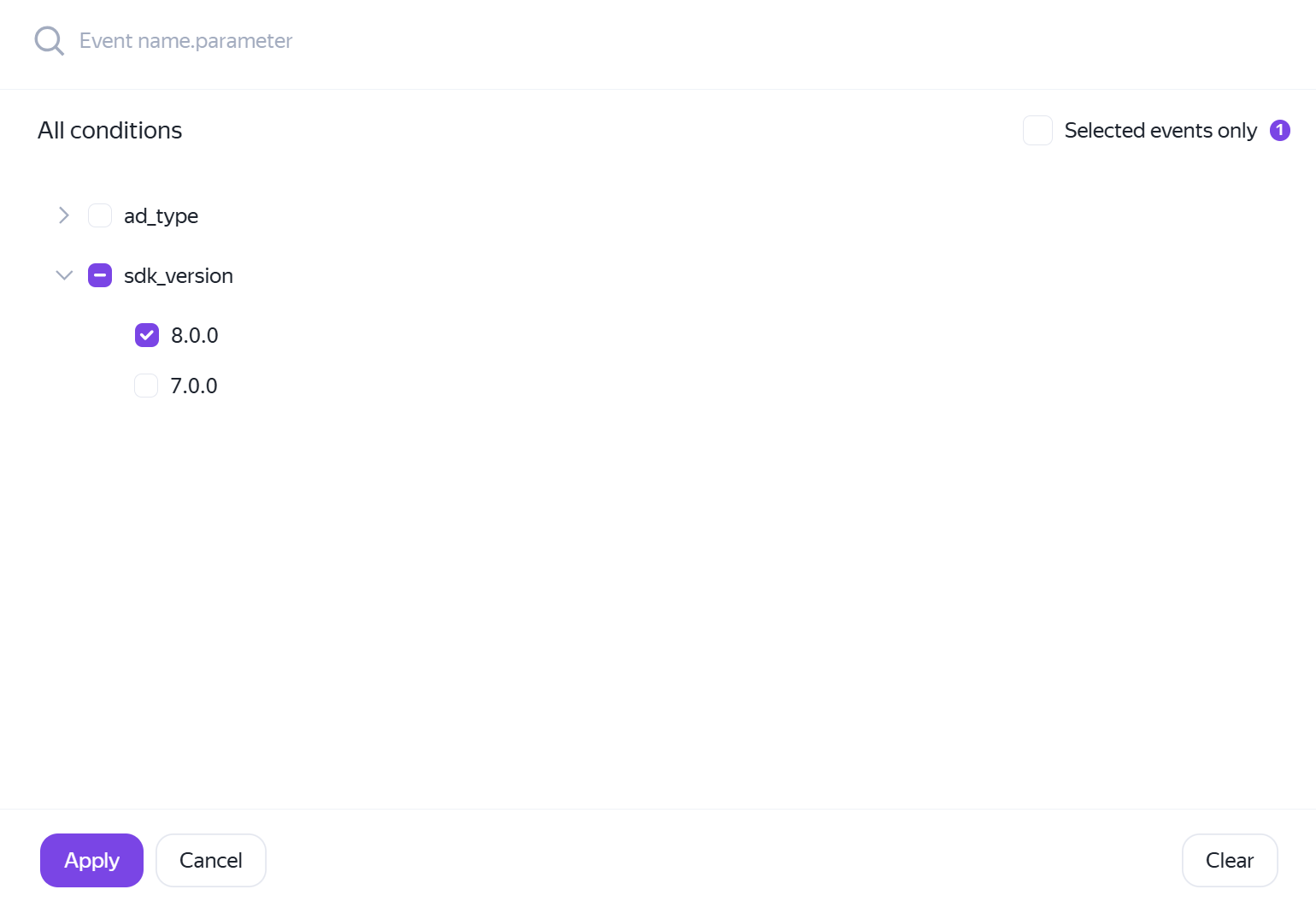
Click + to open a window for selecting event parameters and their values.
-
Select the required values for one or more parameters.
-
Click Apply.
-
-
If you want to set multiple conditions for sending a conversion, for each of them select the execution condition (and/or), click +, and configure the parameters and their values.
A conversion will only be counted if all specified conditions are met in the and mode, or if at least one condition is met in the or mode.
Example of setting event parameters
Example of selecting event parameter values
If you didn't find the answer you were looking for, you can use the feedback form to submit your question. Please describe the problem in as much detail as possible. Attach a screenshot if possible.